On a Linux-Based System
If you’re running a media automation stack on Linux, Prowlarr is one of those tools that quietly makes everything else less painful. It centralizes indexer management for Sonarr, Radarr, Lidarr, and friends, so you’re not reconfiguring the same indexers over and over again.
This post walks through how I install Prowlarr on a Linux-based system using the official method. I’m assuming you already have a basic Linux install up and running. If not, start with A Beginner’s Guide to Linux before continuing.
What This Post Is About
This is a practical, command-line-focused guide to installing Prowlarr on Linux. No Docker, no fancy orchestration, just a clean install using systemd so it behaves like a proper service.
Why I Use Prowlarr
Before Prowlarr, every app had its own indexer config. Any change meant fixing things in multiple places. Prowlarr solves that by acting as a single source of truth for indexers and syncing them automatically to the apps that need them.
Once it’s set up, you mostly forget it exists—and that’s exactly what I want.
Prerequisites
- A Linux system (Debian or Ubuntu-based works best)
- A non-root user with sudo access
- Basic comfort with the terminal
If commands like cd, ls, or sudo look unfamiliar, go back and skim the Linux basics article first.
Step 1: Update Your System
I always start by updating the system. It avoids weird dependency issues later.
sudo apt update
sudo apt upgrade -y
Step 2: Install Required Dependencies
Prowlarr is built on .NET, so we need the runtime installed.
sudo apt install -y curl sqlite3
The Prowlarr install script will handle the .NET runtime automatically.
Step 3: Install Prowlarr
This is the official install method recommended by the Prowlarr project.
curl -fsSL https://raw.githubusercontent.com/Prowlarr/Prowlarr/develop/distribution/debian/install.sh | sudo bash
This script:
- Creates a
prowlarruser - Installs Prowlarr under
/opt - Sets up a systemd service
You don’t need to manually create users or services unless you enjoy making life harder.
Step 4: Start and Enable the Service
Once installed, start Prowlarr and enable it at boot.
sudo systemctl enable prowlarr
sudo systemctl start prowlarr
To verify it’s running:
systemctl status prowlarr
You should see active (running). If not, check the logs before touching anything else.
Step 5: Access the Web Interface
By default, Prowlarr runs on port 9696.
Open a browser and go to:
http://<your-server-ip>:9696
If you’re installing locally, http://localhost:9696 works.
What Worked Well
- The official install script just works
- systemd integration is clean
- No manual .NET setup required
What Didn’t
- Error messages aren’t always beginner-friendly
- Firewall rules can silently block access
- Permissions issues show up if you mix users carelessly
Lessons Learned
- Use the official install script unless you have a strong reason not to
- Let Prowlarr run as its own user
- Verify the service status before troubleshooting the UI
Featured Image Suggestion
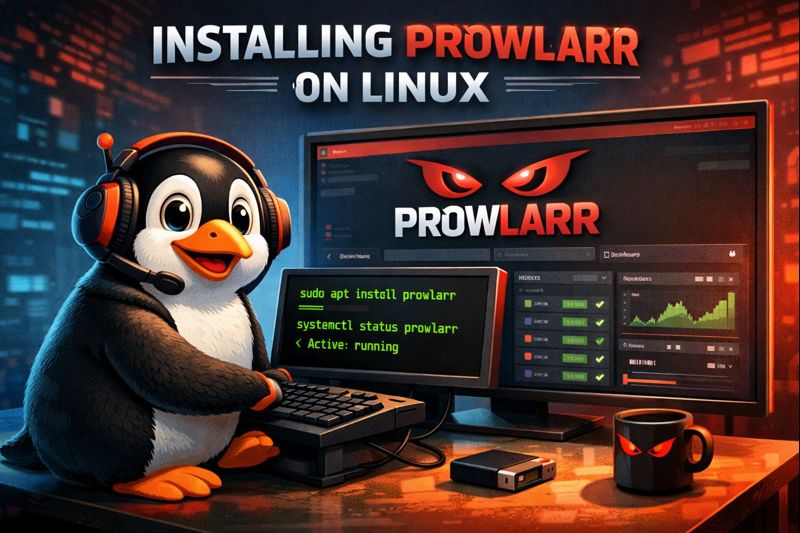
A clean photo or illustration showing a Linux terminal beside the Prowlarr web dashboard.
Suggested Screenshot Locations
- Prowlarr running in the browser on port 9696
systemctl status prowlarrshowing active
Wrap-Up
Prowlarr is one of those tools that feels optional until you use it. After that, manually managing indexers feels unnecessary and outdated.
Now that it’s installed, the next logical step is connecting it to Sonarr and Radarr—which is where it really earns its keep.
Summary
- Prowlarr centralizes indexer management
- The official Linux install is straightforward
- systemd makes it reliable and low maintenance
More on Prowlarr can be found on the official website!
Question for the Reader
Are you running Prowlarr natively, in Docker, or not at all? What’s been your biggest pain point so far?
Related: A Beginner’s Guide to Linux
1 thought on “How to Install Prowlarr”