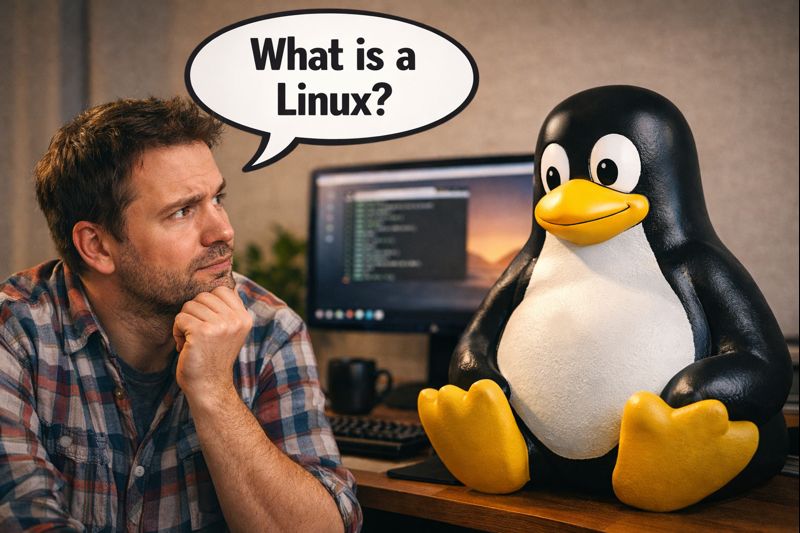
From a Windows User’s Perspective
I avoided Linux for years. Not because it was bad, but because it felt unnecessary. Windows worked, things mostly ran, and when they didn’t, I rebooted and moved on. Linux entered my life out of necessity: Raspberry Pis, servers, Docker, Plex, and eventually anything I didn’t want Windows touching.
This post is a practical, beginner-friendly overview of Linux. No distro wars, no gatekeeping. Just enough to understand what Linux is, how it’s different from Windows, and how to not feel lost the first time you open a terminal.
What This Post Is About
This is not a step-by-step install guide. It’s a mental model:
- What Linux actually is
- What a “distro” means
- How package managers replace installers
- Why Linux behaves differently than Windows
- Common commands you’ll see everywhere
What Is Linux?
Strictly speaking, Linux is just a kernel. It handles hardware, memory, processes, and drivers. On its own, it’s not very useful.
What people call “Linux” is really a full operating system built around the Linux kernel, combined with tools, libraries, and (optionally) a desktop environment.
What Is a Linux Distribution (Distro)?
A distribution (or distro) is a complete Linux operating system packaged with:
- The Linux kernel
- A package manager
- System utilities
- Default software choices
- Sometimes a desktop environment
Different distros exist because different people want different tradeoffs: stability, bleeding-edge features, minimalism, or ease of use.
Common beginner-friendly distros:
- Ubuntu – Popular, well-documented, widely supported
- Linux Mint – Familiar for Windows users
- Debian – Stable and conservative
What Is a Package Manager?
A package manager is how you install, update, and remove software in Linux. Think of it as an app store plus Windows Update, without popups or installers.
Instead of downloading random installers from the internet, you run a command like:
sudo apt install nginxThe package manager:
- Downloads the software
- Installs dependencies automatically
- Keeps everything up to date
- Removes software cleanly
Common Linux Package Managers (apt, yum, dnf, pacman)
Different Linux distros use different package managers. This is a distro choice, not something you manually pick.
- apt – Used by Debian, Ubuntu, and Linux Mint. Most tutorials assume this.
- yum – Older package manager used on legacy Red Hat–based systems.
- dnf – Modern replacement for yum (Fedora, RHEL, Rocky Linux).
- pacman – Arch Linux package manager. Fast, simple, less forgiving.
| Task | apt | dnf / yum | pacman |
|---|---|---|---|
| Update package list | apt update |
dnf check-update |
pacman -Sy |
| Upgrade system | apt upgrade |
dnf upgrade |
pacman -Syu |
| Install package | apt install nginx |
dnf install nginx |
pacman -S nginx |
| Remove package | apt remove nginx |
dnf remove nginx |
pacman -R nginx |
How Linux Is Different from Windows
The biggest difference isn’t the UI. It’s the philosophy.
- Linux assumes you want control
- Configuration lives in text files
- The terminal is a first-class tool
- Most software is free and open source
Linux doesn’t hide much. That’s powerful, but it also means you can break things if you don’t understand what a command does. The upside is that problems are usually fixable if you’re willing to read.
Common Linux Commands You’ll See Everywhere
| Command | What It Does | Typical Use |
|---|---|---|
ls |
Lists files and directories | See what’s in a folder |
cd |
Change directory | Move between folders |
pwd |
Print working directory | Confirm where you are |
cp |
Copy files | Duplicate files or folders |
mv |
Move or rename files | Rename or relocate files |
rm |
Remove files | Delete files (carefully) |
mkdir |
Create directories | Make new folders |
sudo |
Run command as admin | System-level changes |
nano |
Terminal text editor | Edit config files |
systemctl |
Manage services | Start or stop background services |
Why People Actually Use Linux
- Old hardware runs better
- Servers need stability
- Automation matters
- Licensing costs disappear
Once you get used to it, Linux stops feeling “hard” and starts feeling predictable.
Wrap-Up
Linux isn’t magic, and it isn’t scary. If you understand distros, package managers, and a handful of commands, you’re already past the hardest part.
Summary
- Linux is a kernel; distros make it usable
- Package managers replace installers
- Different distros use different managers
- You don’t need to know everything to start
Want to learn more about Linux? Visit Linux.org!
Question for you: What’s stopping you from trying Linux right now?
4 thoughts on “A Beginner’s Guide to Linux”