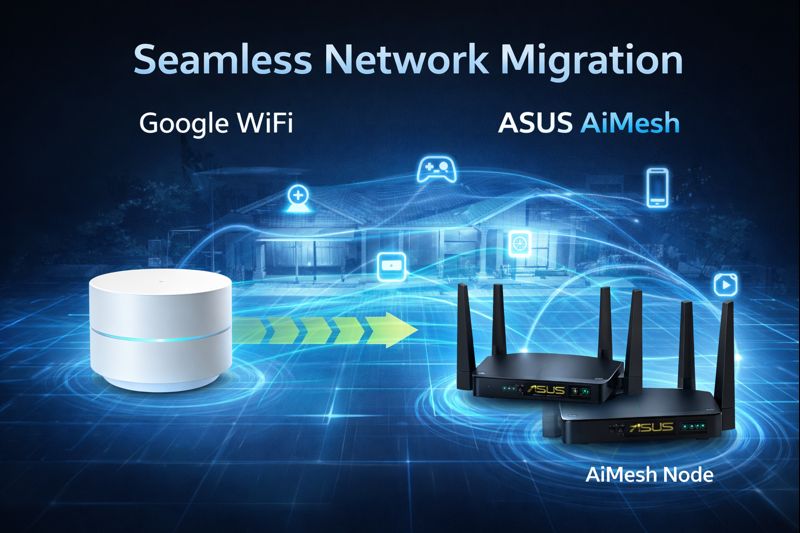
How I Replaced Google WiFi Without Reconfiguring Devices
When people talk about upgrading their home network, they usually assume downtime is unavoidable. Devices disconnect, credentials change, and someone in the house inevitably gets frustrated. My goal was different: I wanted a seamless network migration where I could replace Google WiFi with ASUS hardware without touching a single device.
This article documents what I actually did not what a textbook migration looks like.
What “Seamless” Meant in Practice
- No SSID changes for existing devices
- No Wi-Fi password changes
- No device re-pairing
- No manual cleanup after the switch
If everything reconnected on its own, the migration was a success.
The Migration Order Matters
The most important lesson from this process is that order matters more than complexity. I didn’t run old and new networks in parallel. I replaced identity first, then removed the old hardware.
Step-by-Step: What I Actually Did
1. Power Off the Google WiFi Pods
I started by powering down all Google WiFi pods. I didn’t factory reset them. I simply removed them from the network so they would no longer broadcast the existing SSID.
This cleared the way for the new access points to assume the same network identity.
2. Configure ASUS Access Points with the Same SSID and Password
Before connecting anything to the live network, I configured the ASUS routers as access points using the exact same SSID and Wi-Fi password that the Google WiFi system used.
This is the core of a seamless network migration. Devices remember networks by name and credentials, not by hardware.
3. Set Up AiMesh
With the SSID and password matched, I configured ASUS AiMesh so the access points behaved as a single wireless system.
At this point, the ASUS hardware was fully ready to take over wireless duties.
4. Disable Wi-Fi on the Bell Home Hub
Next, I disabled the built-in Wi-Fi radios on the Bell Home Hub. This ensured there was only one wireless system active in the house and eliminated any chance of interference or device confusion.
The Bell Home Hub continued handling routing and DHCP. It simply stopped advertising Wi-Fi.
5. Verify Device Reconnection
Once the ASUS routers were configured, rebooted, and powered on, I power-cycled my phones, laptops, TVs, and other devices, then verified they connected automatically to the new network.
No device required reconfiguration. Everything associated with the new access points as if nothing had changed.
Why This Worked
This migration worked because I preserved network identity. From the perspective of every device in the house, the Wi-Fi network never changed only the radios broadcasting it did.
By shutting down the old system first, matching credentials exactly, and letting the new system take over cleanly, I avoided conflicts, roaming issues, and cleanup work.
The Result
- No downtime visible to the household
- No device reconfiguration
- Improved wireless performance
- A cleaner, more controllable network
From the outside, it looked like nothing happened. From my side, the entire network was upgraded.
What I’d Emphasize If You Try This
- Match SSID and password exactly (case-sensitive)
- Disable competing Wi-Fi radios
- Don’t overthink routing if it already works
If you want to read more Why I’m Replacing Google WiFi with ASUS Routers.
For this project I purchased two ASUS RT-BE58U WiFi 7, AiMesh expandible routers! I purchased them from Amazon!
1 thought on “Seamless Network Migration”